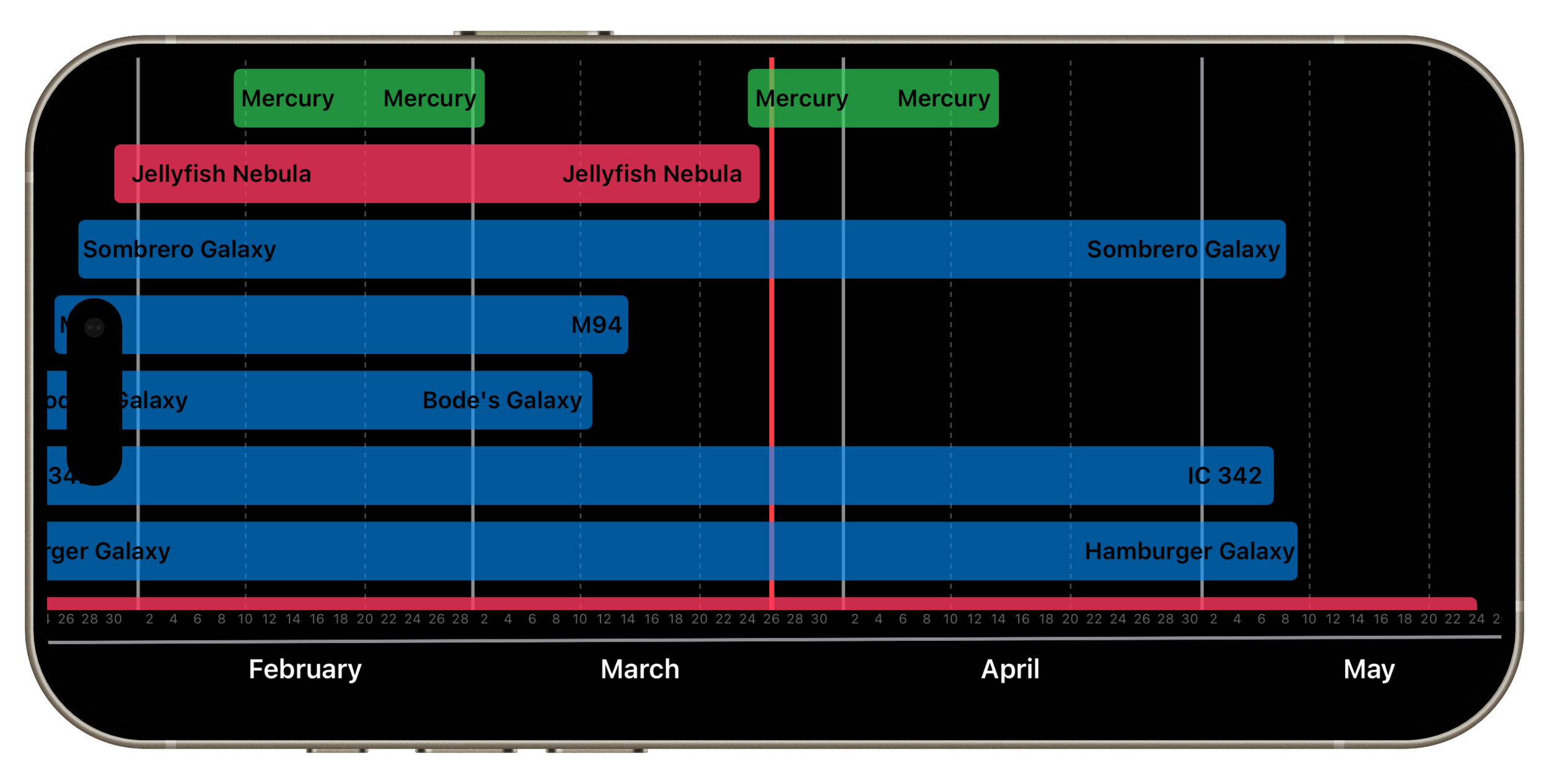
Add a Planet to the Planner
Step 1:
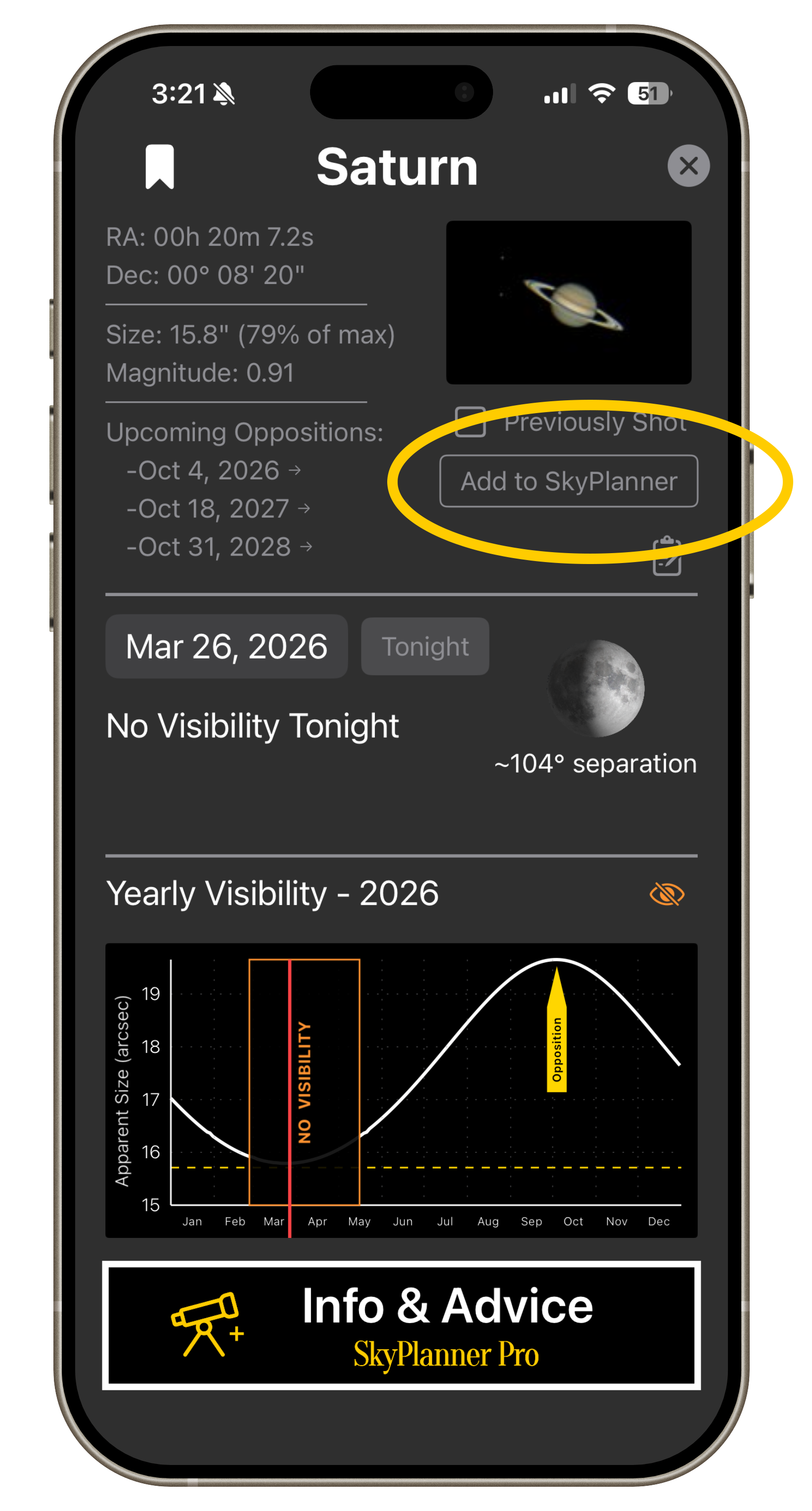
From any planet detail page, click Add to SkyPlanner.
IMPORTANT: Inner and Outer Planets work differently
Drag the green (start) and red (end) dates to define date range.
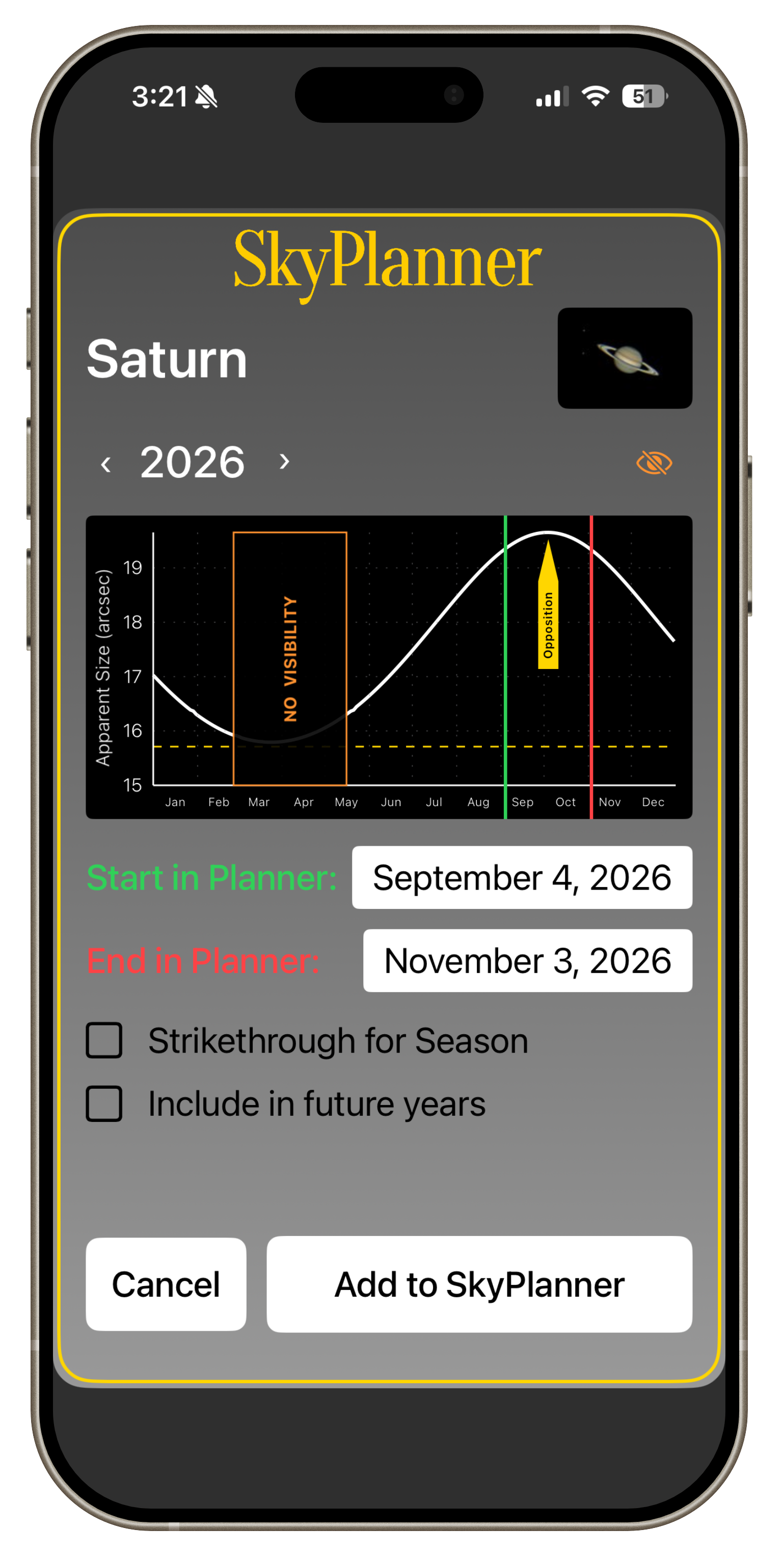
Step 2a (outer planets):
Pro tip: Advance the year using the arrow if the desired end date is in the following year
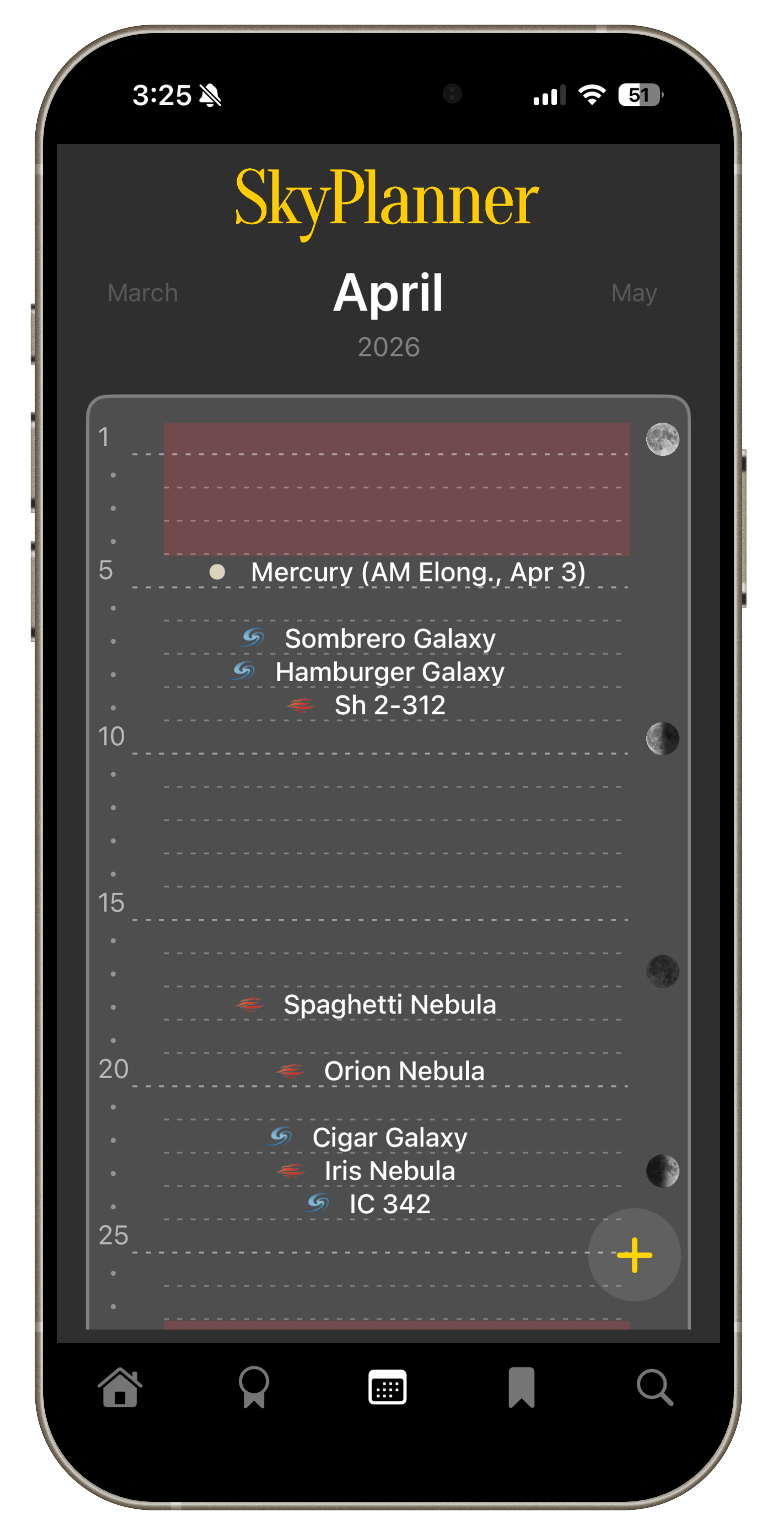
Planet will now show in the planner, and on the home page as the date nears. The date of opposition or elongation will be noted in the entry.
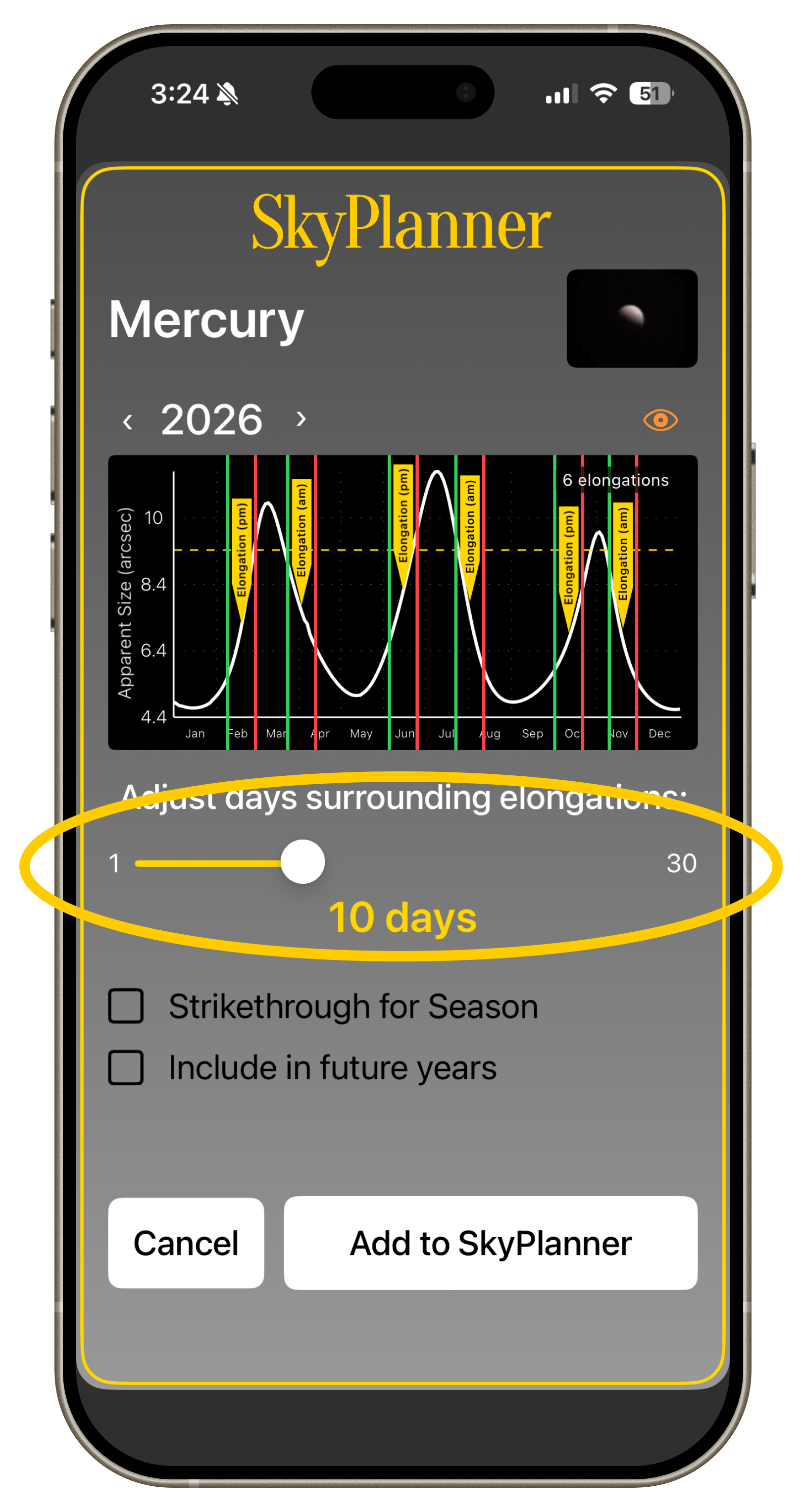
Step 2b (inner planets):
Use the slider to choose a number of days before and after elongation to define date range.
Pro tip: Planets will appear in the planner for all elongations of the year.
Step 3 (all planets):
Click Add to SkyPlanner.